

There’s nothing more annoying than sitting down to play your favorite game and realizing your controller isn’t working properly. Maybe your character starts moving on its own, your joystick feels unresponsive, or one of your buttons just refuses to work.
The good news is that most of these problems are easy to check and fix at home. You don’t always need to buy a new controller right away. In this guide, we’ll look at the most common gamepad problems, explain why they happen, and share simple fixes. We’ll also show you how you can use free tools like Gamepad Tester to figure out exactly what’s wrong.
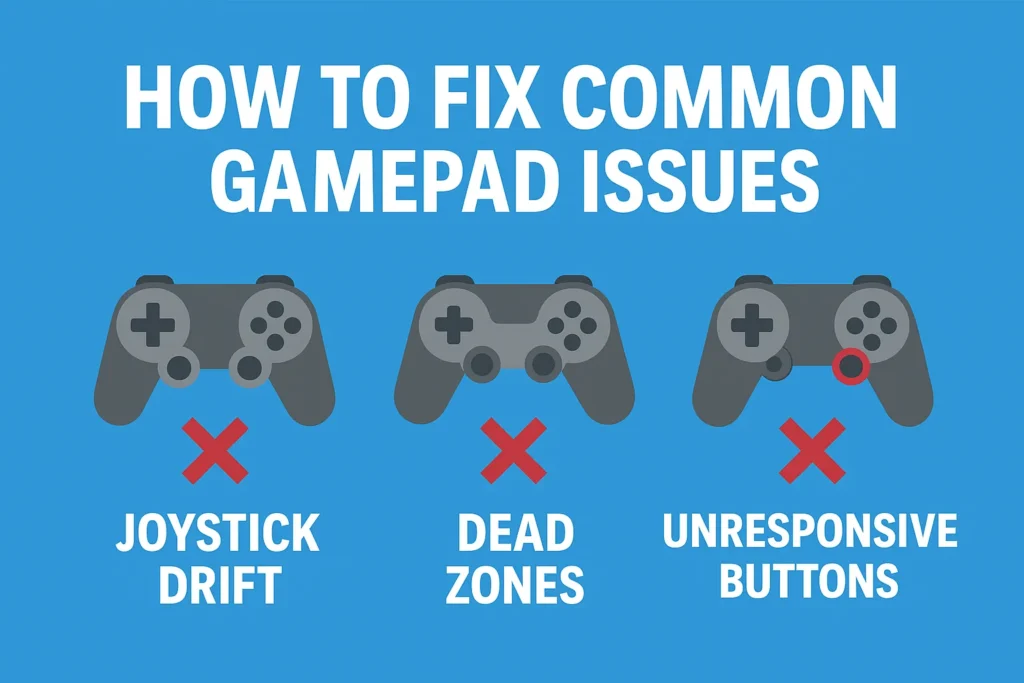
Problem 1: Joystick Drift
What it looks like: Your character or camera moves on its own, even when you’re not touching the stick.
Why it happens:
- Dust or dirt inside the joystick
- Wear and tear over time
- Incorrect calibration
How to fix it:
- Test for drift → Open Gamepad Tester, move the joystick, and let go. If the stick doesn’t return to “0”, drift is confirmed.
- Recalibrate →
- Windows: Settings > Devices > Devices and Printers > Controller Settings > Calibrate
- Consoles: Find “Controller Calibration” in system settings
- Clean the joystick → Use compressed air or gently clean with a cotton swab dipped in rubbing alcohol.
- Replace the joystick module → If cleaning doesn’t help, replacement kits are affordable online.
Also read this article regarding Stick Drift.
Problem 2: Dead Zones
What it looks like: Small joystick movements don’t register until you push further.
Why it happens:
- Game/software dead zone settings too high
- Aging joystick sensors
How to fix it:
- Check with Gamepad Tester → Move the stick slightly and see if it registers.
- Adjust settings → Lower the dead zone percentage in game/controller settings.
- Update firmware/drivers → Outdated software can cause input issues.
- Replace joystick if the dead zone is large and unfixable via software.
Problem 3: Unresponsive Buttons
What it looks like: Button presses don’t register or feel mushy.
Why it happens:
- Dust/debris under the button
- Worn-out rubber membranes
- Damaged contact points
How to fix it:
- Test in Gamepad Tester → Press each button to confirm which ones fail.
- Quick clean → Blow compressed air around the button.
- Deep clean → Open the controller and wipe the contact points with rubbing alcohol.
- Replace pads or switches → Most controllers have cheap replacement kits available.
Other Common Issues
- Triggers not working? → Clean and recalibrate.
- Connection issues? → Try a new cable, re-pair Bluetooth, or replace batteries.
- Lag or delay? → Reduce wireless interference, update firmware, test latency with Gamepad Tester.
Quick Troubleshooting Flow
- Step 1: Test
- Open Gamepad Tester and check joysticks, buttons, and triggers.
- Step 2: Identify the problem
- Stick moving on its own → Drift
- Small stick movements not detected → Dead zone
- Button not registering → Unresponsive button
- Step 3: Apply fixes
- Try calibration → If it works, done ✅
- If not, clean → Often solves dust/debris issues
- Still broken? → Replace part or consider a new controller
Maintenance Tips to Prevent Future Problems
- Store controllers in a dust-free area.
- Avoid pressing sticks too hard or slamming buttons.
- Clean your controller monthly with a dry cloth and occasional compressed air.
- Keep firmware and drivers updated.
- Use a controller case if you travel often with it.
FAQs (Frequrntly Asked Questions)
Gamepad FAQs — Fix Drift, Dead Zones & Button Issues
Here are practical, easy-to-follow answers to the most common controller problems — written to help gamers quickly solve issues and get back to playing.
Why does joystick drift happen so often?
Joystick drift happens when sensors inside the stick wear down or get dusty. Over time, this causes input even when the stick isn’t touched.
Can I fix a controller without opening it?
Yes. Try recalibration, compressed air cleaning, firmware updates, and adjusting dead zones in game or controller software.
Is joystick drift covered by warranty?
It depends on your manufacturer and warranty terms. Some cover drift as a defect, while others consider it normal wear.
How do I reduce dead zones in games?
Go to your game or controller app settings (like Steam or Xbox Accessories) and lower the dead zone percentage. Test adjustments with Gamepad Tester.
What is the safest way to clean sticky or unresponsive buttons?
Start with compressed air. If still sticky, open the controller and clean contacts with isopropyl alcohol using a cotton swab. If unsure, seek repair help.
When should I replace my controller instead of repairing it?
If multiple issues occur, repair costs are high, or problems return quickly, replacing your controller is often the smarter option.
How often should I clean or maintain my controller?
Give your controller a quick wipe and air clean once a month. If you play heavily, clean more often and keep it stored safely when not in use.
How do I test my controller to find the exact problem?
Go to Gamepad Tester. Press buttons and move sticks to see live readings, which confirm drift, dead zones or failing inputs.
Final Thoughts
Most controller issues like drift, dead zones, and unresponsive buttons can be fixed at home with a little patience. Before buying a new one, test your controller with Gamepad Tester — you’ll know exactly what’s wrong and whether it’s a quick fix or something that needs replacement.
👉 Next time your gamepad acts up, don’t panic. Test it, clean it, fix it — and get back to gaming.
Leave a Reply